What Is an AI Image Extender?
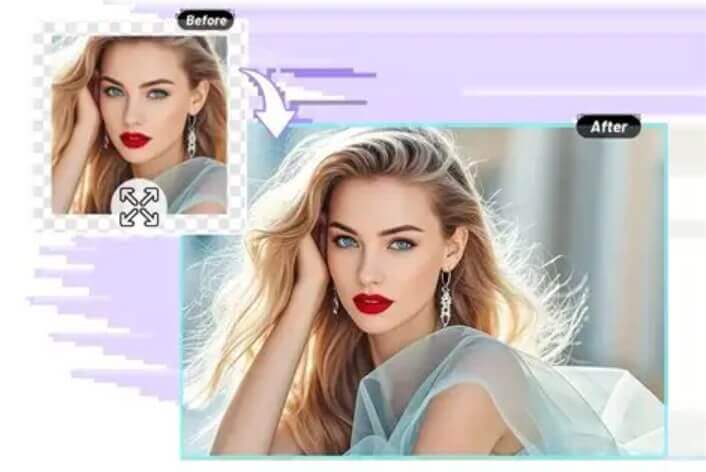
An AI image extender is an online tool that uses artificial intelligence to extend a photo beyond its original edges by generating new content in the expanded areas. This technique is known as AI outpainting (or image outpainting): instead of stretching or repeating pixels, the AI analyzes the colors, textures, lighting and composition of your image, then invents believable content that continues the scene naturally.
Whether you want to uncrop a portrait, add breathing room around a landscape, change a photo to a different aspect ratio for social media, or give a subject a wider background, an image extender saves you from clumsy manual editing. The whole process takes just a few seconds and runs right in your browser — no software to install, no account to create.
Core Features of the AI Image Extender Tool
Extend in Any Direction
Choose exactly where the AI adds new content: all sides at once, or a single side — top, bottom, left or right.
Seamless AI Outpainting
The AI analyzes your original colors, textures and patterns, then fills the extended areas so they blend seamlessly with the photo.
100% Free & No Watermark
Every expanded image is completely free with no watermark, so you can save and use it anywhere you like.
Fast & No Sign-Up
No registration, no downloads. Upload a photo and get your extended image in just a few seconds.
Private & Secure
Your photos are processed privately and never published to any public gallery.
Unlimited Use on Any Device
Expand as many photos as you want, on desktop, tablet or phone — the tool runs entirely in your browser.
How to Use the AI Image Extender (Step by Step)
Expanding a photo beyond its borders takes less than a minute. Follow these simple steps:
- Open the AI image extender tool. Go to the AI image extender page on AIDoImg.
- Upload your photo. Drag and drop an image or click to upload from your device.
- Choose the extension direction. Select all sides, top, bottom, left or right, depending on how you want the image to grow.
- Generate and download. Wait a few seconds for the AI to fill the extended areas, then preview and download your seamless, watermark-free result.
Pro Tips for the Most Natural Image Extension Results
To get the most seamless, natural-looking outpainting from the AI image extender, keep these tips in mind:
- Start with a high-resolution photo. The sharper and more detailed your original, the more convincing the AI-generated extension will be.
- Pick images with simple backgrounds. Uniform surfaces like sky, walls or grass are the easiest for the AI to continue flawlessly.
- Extend one direction at a time. For maximum control, expand a single side first, then extend another side in a follow-up pass.
- Leave some edge context. Photos where the scene continues logically at the border (for example, a horizon or a pattern) outpaint far more naturally than ones cut mid-subject.
- Think about the final aspect ratio. Want a 16:9 cover or a 9:16 story? Extend your photo accordingly to hit the exact format before posting.
- Generate more than once. AI results vary slightly between runs — try again and pick the extension you like best.
Looking for more ways to transform your pictures? Try the AI background remover to clean up any image, or the AI image enhancer to boost the quality of the final result.
Frequently Asked Questions (FAQ)
Is the AI image extender really free to use?
Yes, the AI image extender on AIDoImg is 100% free, with unlimited use, no hidden fees, no watermarks and no credit card required.
Do I need to sign up or register to extend a photo?
No. You can upload a photo and expand it instantly without creating an account. Just open the tool, upload your image, choose a direction and download the result.
Which directions can I extend my image in?
The tool lets you choose exactly where the AI adds new content: all sides at once, or a single side — top, bottom, left or right — depending on the composition you need.
Will the extended area match the rest of my photo?
Yes. The AI analyzes the colors, textures and patterns of your original image and intelligently fills the extended areas so the new content blends seamlessly with the existing photo.
What kind of photo works best for AI image extension?
A high-resolution photo with a fairly simple or uniform background gives the most natural outpainting results. The clearer the edges of your image, the easier it is for the AI to continue them convincingly.
Is my uploaded photo private and secure?
Your photo is processed only to generate the extended result. Images are not published to any public gallery, keeping your privacy protected.