
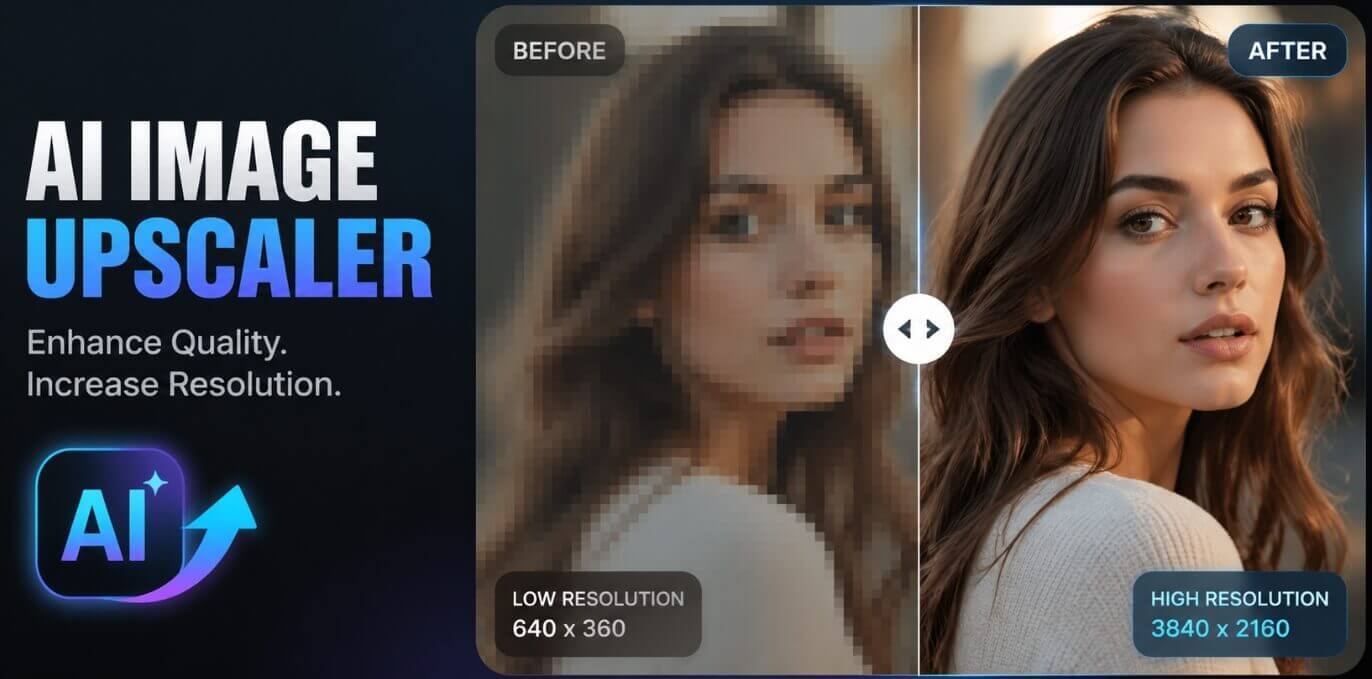
What Is AI Image Upscaling?
The AI image upscaler is an online tool that uses advanced deep learning super-resolution models to increase the pixel count and physical size of any image in seconds. Instead of simply stretching pixels like classic enlarging software, this AI upscale technology analyzes the image, then intelligently fills in missing textures and sharpens edges, so enlarged photos stay clear and natural rather than soft, jagged or pixelated.
It is perfect for turning low-resolution snapshots into high-resolution images — up to 2K or 4K — for printing large posters, displaying on HD screens, or simply rescuing old, small photos. Best of all, the whole process takes just a few seconds, runs right in your browser, and is 100% free with unlimited use.
Core Features of the AI Image Upscaler Tool
Upscale Up to 4x Without Losing Quality
Enlarge low-resolution images into sharp high-resolution versions — AI fills in missing texture so nothing looks stretched or blurry.
Choose Output Size: 1K, 2K & 4K
Pick the size that fits your need — 1K for quick web sharing, or 2K and 4K for posters and HD displays (1K default).
100% Free & No Watermark
Every upscaled image is completely free with no watermark, so you can print and share it anywhere you like.
Fast & No Sign-Up
No registration, no downloads. Upload a photo and get your enlarged, high-resolution image in seconds.
Private & Secure
Your images are processed only to generate the result and are never published to any public gallery.
Works on Any Device
Use it on desktop, tablet or phone — the AI photo upscaler runs entirely in your browser with unlimited use.
How to Use AI Image Upscaler (Step by Step)
Enlarging a photo without losing quality takes less than a minute. Follow these simple steps:
- Open the AI image upscaler tool. Go to the AI image upscaler page on AIDoImg.
- Upload your image. Drag and drop a photo or click to upload from your device.
- Choose the output size. Select 1K, 2K or 4K depending on how large you want the result — 4K is ideal for big poster prints.
- Upscale and download. Wait a few seconds for the AI to enlarge and sharpen your image, then preview and download your watermark-free result.
Pro Tips for the Sharpest AI Upscaling Results
To get the most detailed and natural enlargements from the AI image upscaler, keep these tips in mind:
- Start from the highest-quality original you have. The sharper the source, the more detail the AI can reconstruct in the enlarged image.
- Pick the right output size for your use case. Choose 4K for large poster prints, and 1K or 2K for sharing on screens — bigger is not always better.
- Use sharp, well-lit photos. Images with even lighting and crisp focus upscale more cleanly than dark or shaky ones.
- Avoid heavy noise and compression artifacts. Highly compressed JPEGs or grainy shots can introduce odd texture when enlarged — cleaner sources give cleaner results.
- Upscale first, then edit. Enlarge your image before cropping or adding filters so you keep the maximum resolution for final edits.
- Experiment with different sizes. Compare 2K and 4K outputs to find the sweet spot between file size and visible detail for your project.
Looking for more ways to improve your photos? Try the AI image enhancer to boost color, clarity and detail, or the AI photo restoration tool to bring old and damaged photos back to life.
Frequently Asked Questions (FAQ)
Is the AI image upscaler really free?
Yes, the AI image upscaler tool on AIDoImg is 100% free to use, with no hidden fees, no watermarks and unlimited use — no credit card required.
Do I need to sign up or register to upscale images?
No. You can upload an image and enlarge it instantly without creating an account. Just open the tool, upload your photo, pick the output size and download the result.
How much can I enlarge my images without losing quality?
The AI upscaler increases the pixel count and physical size of your image while intelligently filling in missing textures and sharpening edges, so enlarged images stay clear and natural instead of blurry or pixelated.
Which output sizes can I choose?
The tool supports 1K, 2K and 4K output sizes, so you can enlarge photos for HD screens or big poster prints. 1K is the default, and you can switch sizes freely before generating.
What kind of image works best for upscaling?
A sharp, well-lit photo with fine detail gives the best result. The higher the quality of the original, the more detailed and natural the enlarged image will be.
Is my uploaded image private, and can I use the result without a watermark?
Your image is processed only to generate the result and is never published to any public gallery. Every upscaled image is completely watermark-free, ready to save, print or share.