
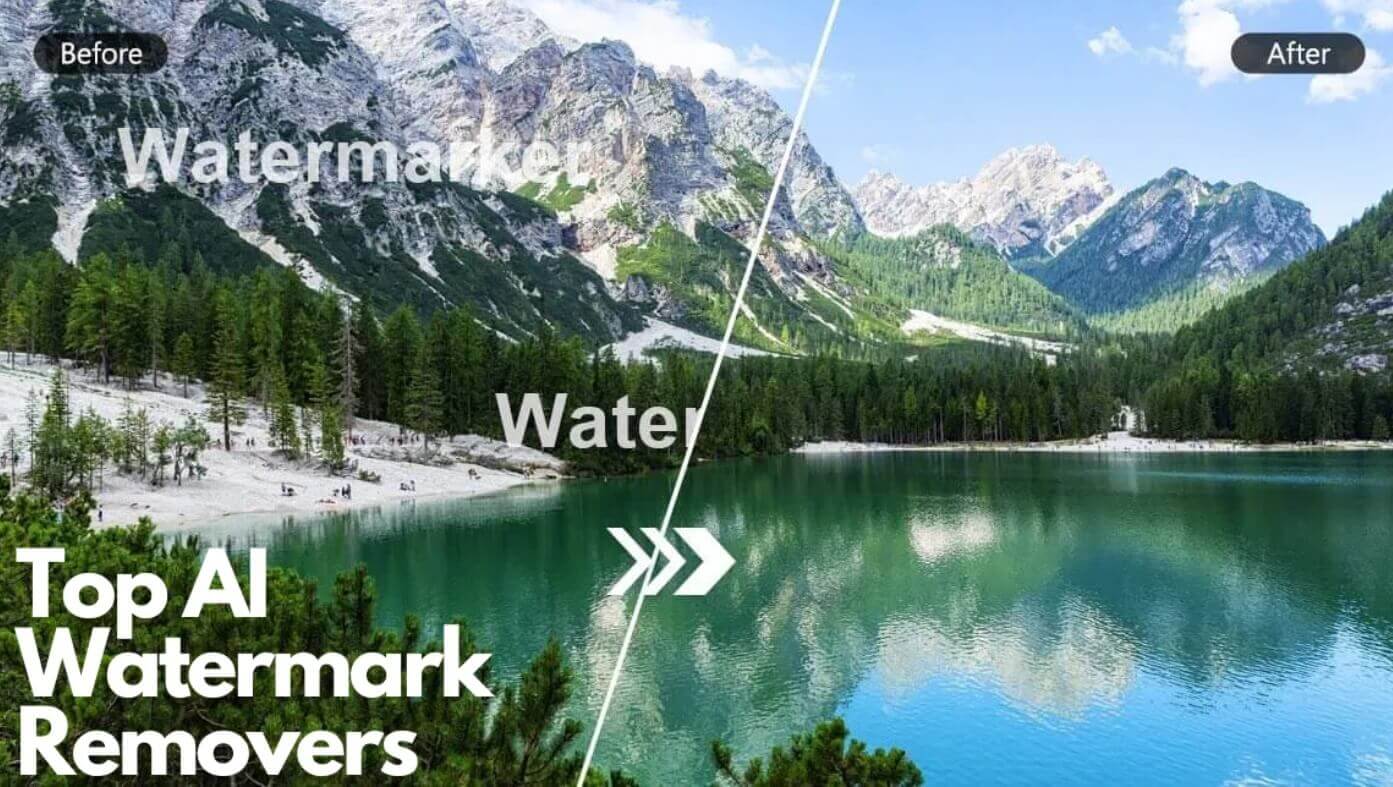
What Is the AI Watermark Remover?
The AI watermark remover is an online photo tool that cleans unwanted text and marks off any image. It detects and erases watermarks, logos, copyright text, signatures, stamps and date stamps, then rebuilds the covered pixels with deep-learning inpainting — blending the repaired area into the surrounding photo so nothing looks smudged, blurred or cropped.
The same tool can also add a watermark to your own images — type your name or brand, then adjust the size, opacity and diagonal tiling to protect your work before sharing. Everything runs right in your browser with three simple modes: Auto Remove, Manual Remove and Add Watermark. No apps to install, no account to create.
Core Features of the AI Watermark Remover
Automatic Detection
Upload a photo and the AI finds watermarks, logos, signatures and stamps for you, then erases and rebuilds them seamlessly.
Manual Erase Mode
Paint over stubborn marks with an adjustable brush — only the pink-marked areas are erased, the rest stays untouched.
No Crop, No Quality Loss
The exact original canvas size and aspect ratio are kept — only the covered pixels are rebuilt, never cropped or stretched.
Watermarks, Logos & Text
Erase watermarks, logos, copyright text, signatures, stamps and date stamps — on plain or busy backgrounds.
Add a Watermark
Type your own text watermark — instant, full-resolution and with size, opacity and tiling controls to protect your work.
100% Free & No Watermark
No registration, no limits and no watermark on your downloads — clean as many images as you need.
How to Use the AI Watermark Remover (Step by Step)
Removing a watermark takes less than a minute. Follow these simple steps:
- Open the AI watermark remover tool. Go to the AI watermark remover page on AIDoImg.
- Upload your image. Drag and drop or click to add the photo with the watermark, logo or text you want to remove.
- Pick a mode. Auto Remove finds marks for you. Manual Remove lets you paint the exact regions with a pink brush. Add Watermark types in your own text.
- Run and wait a moment. The AI erases the marks and rebuilds the background — usually within a minute. Adding a watermark is instant.
- Preview and download. Check the full-resolution result, then download it clean and watermark-free.
Pro Tips for the Cleanest Watermark Removal
To get spotless results from the AI watermark remover, keep these tips in mind:
- Start with Auto Remove. Let the AI detect watermarks, logos and text first — it handles the majority of marks in one pass.
- Use Manual Remove for leftovers. Signatures, small logos and edge remnants are easier to clean by painting exactly over them with the adjustable brush.
- Brush only the marks. Only the pink-marked areas are rebuilt, so keep the brush tight around the watermark to protect the subject and background.
- Upload the highest resolution. A larger original gives the AI more texture to rebuild from, which means sharper, more natural results.
- Check busy backgrounds zoomed in. After an auto pass on textured areas, zoom in and clean any faint leftover edge manually for a flawless finish.
- Protect your own photos too. Use Add Watermark mode with tiling, size and opacity controls before sharing your images online.
Cleaning up more images? Try the AI object remover to erase people, objects and blemishes, or the AI background remover to strip backgrounds and export a transparent PNG in one click.
Frequently Asked Questions (FAQ)
Is the AI watermark remover really free?
Yes, the AI watermark remover on AIDoImg is 100% free with no registration and no limits. There is no watermark on downloads and no hidden cost — clean as many images as you like.
Do I need to sign up to remove a watermark?
No. Upload an image, choose a mode and hit the button — no account is needed. The cleaned, full-resolution result is ready to download in moments.
What is the difference between Auto and Manual remove?
Auto Remove detects watermarks, logos and text by itself. Manual Remove lets you paint exactly over stubborn marks — signatures, small logos or leftover edges — with a brush size you can adjust, plus a one-click clear.
Will removing the watermark crop my photo or lower its quality?
No. The result keeps the exact original canvas size and aspect ratio. The AI only rebuilds the pixels under the removed marks with deep-learning inpainting — no blur, no leftover edges and no cropping.
Can it handle watermarks on busy or textured backgrounds?
Yes. The AI analyzes the surrounding pattern and rebuilds the covered area to match. For very complex backgrounds, follow up with Manual Remove to clean any small leftovers with the brush.
Can I add my own watermark to protect my images?
Yes. The Add Watermark mode types your text onto the photo at full resolution instantly, with controls for size, opacity and diagonal tiling — perfect for protecting your work before sharing.