What Is AI Tattoo Design?
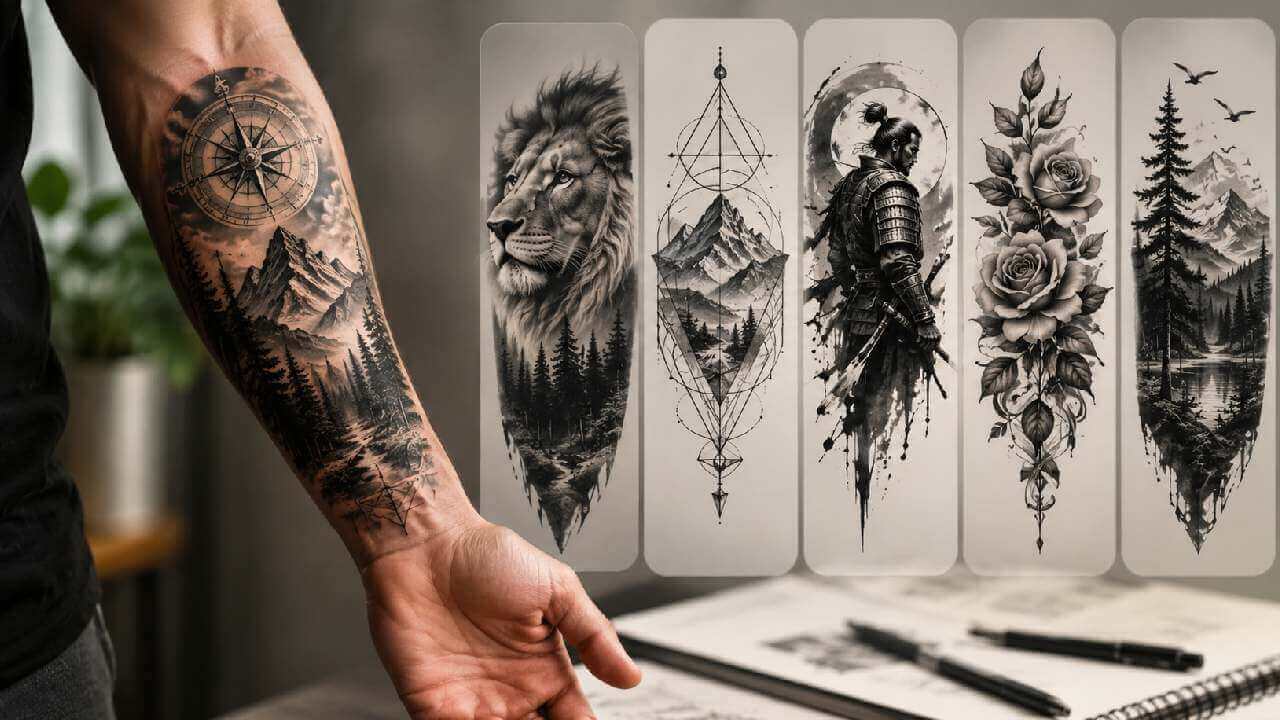
The AI tattoo design tool is an online photo effect that uses advanced AI image models to place realistic tattoos onto a photo of your body. Instead of guessing how a design will look on your skin, you can upload a photo of your arm, chest, back, neck or leg, choose a tattoo style from the built-in gallery, upload your own tattoo design, or type the text, letters or symbols you want inked — and the AI renders the tattoo on your body in seconds, following your natural contours, lighting and skin tone.
It is perfect for exploring tattoo ideas before you commit, planning placement and size, or simply having fun with virtual tattoos. Best of all, it is 100% free, produces watermark-free results, requires no sign-up, and you can try unlimited designs until you find the one you love.
Core Features of the AI Tattoo Design Tool
Try Any Body Part
Upload a photo of your arm, chest, back, neck or leg and see exactly how a tattoo fits there.
Built-in Tattoo Gallery
Browse a built-in gallery of tattoo styles and apply them to your photo with one click.
Upload Your Own Design
Have a design in mind? Upload your own tattoo image and let the AI place it realistically on your body.
Custom Text, Letters & Symbols
Type the words, letters or symbols you want inked and see them rendered as a tattoo on your photo.
Realistic AI Rendering
Tattoos follow the natural contours, lighting and skin tone of your body for a convincing preview.
100% Free & No Watermark
Every result is completely free with no watermark and no sign-up — unlimited tries until you decide.
How to Use AI Tattoo Design (Step by Step)
Previewing a tattoo on your body takes less than a minute. Follow these simple steps:
- Open the AI tattoo design tool. Go to the AI tattoo design page on AIDoImg.
- Upload a photo of the body part. Upload a clear photo of your arm, chest, back, neck or leg — wherever you are considering the tattoo.
- Choose or create your tattoo. Pick a style from the built-in gallery, upload your own design, or type the text, letters or symbols you want inked.
- Generate and download. Wait a few seconds for the AI to render the tattoo on your body, then preview and download your watermark-free result.
Pro Tips for the Most Realistic Tattoo Previews
To get the most convincing results from the AI tattoo design tool, keep these tips in mind:
- Use a clear, well-lit photo. Natural, even lighting helps the AI render the tattoo against your skin tone and body contours accurately.
- Show the whole area. Make sure the body part you want to ink is fully in the frame, so the placement and size look right.
- Match the design to the body part. Small, detailed designs work well on wrists and forearms, while larger pieces shine on the chest and back.
- Explore the built-in gallery. Try several styles from the gallery to discover looks you had not considered before.
- Test your own text and symbols. Type the words, letters or symbols you are thinking of to check how the typography suits your body.
- Preview multiple designs before deciding. You can try unlimited designs for free — compare a few placements and sizes before you commit.
Looking for more ways to try before you commit? Try the AI nail art generator to preview nail designs on your hands, or the AI body editor to reshape your body curves in photos.
Frequently Asked Questions (FAQ)
Is the AI tattoo design tool really free?
Yes, the AI tattoo design tool on AIDoImg is 100% free to use, with no hidden fees, no watermarks and no credit card required.
Do I need to sign up to try a tattoo on my photo?
No. You can upload a photo and preview tattoo designs instantly without creating an account. Just open the tool, upload your image and download the result.
Which body parts can I preview tattoos on?
You can try tattoos on your arm, chest, back, neck, leg and more — just upload a photo of the body part you are considering inking and let the AI do the rest.
Can I use my own tattoo design instead of the built-in gallery?
Yes. Besides picking a style from the built-in tattoo gallery, you can upload your own tattoo design and the AI will place it realistically on your photo.
Can I type the text, letters or symbols I want inked?
Yes. Type the words, letters or symbols you are thinking of and the AI will render them as a tattoo on the body part in your photo, so you can check the typography before you commit.
Will the tattoo preview look realistic?
The AI renders the tattoo following the natural contours, lighting and skin tone of your body, so results look realistic. A clear, well-lit photo gives the most convincing preview.